iCloud Sync
iCloud Sync lets you access your data across all your Apple devices. It's optional and can be turned on or off anytime.
When enabled, your data syncs securely through your personal iCloud account—log a meal on your iPhone, and it appears on your iPad.
Enabling iCloud Sync
- Go to Settings → iCloud Sync
- Toggle it On
- If no cloud data exists, sync starts immediately
- If cloud data exists, choose how to handle it (see below)
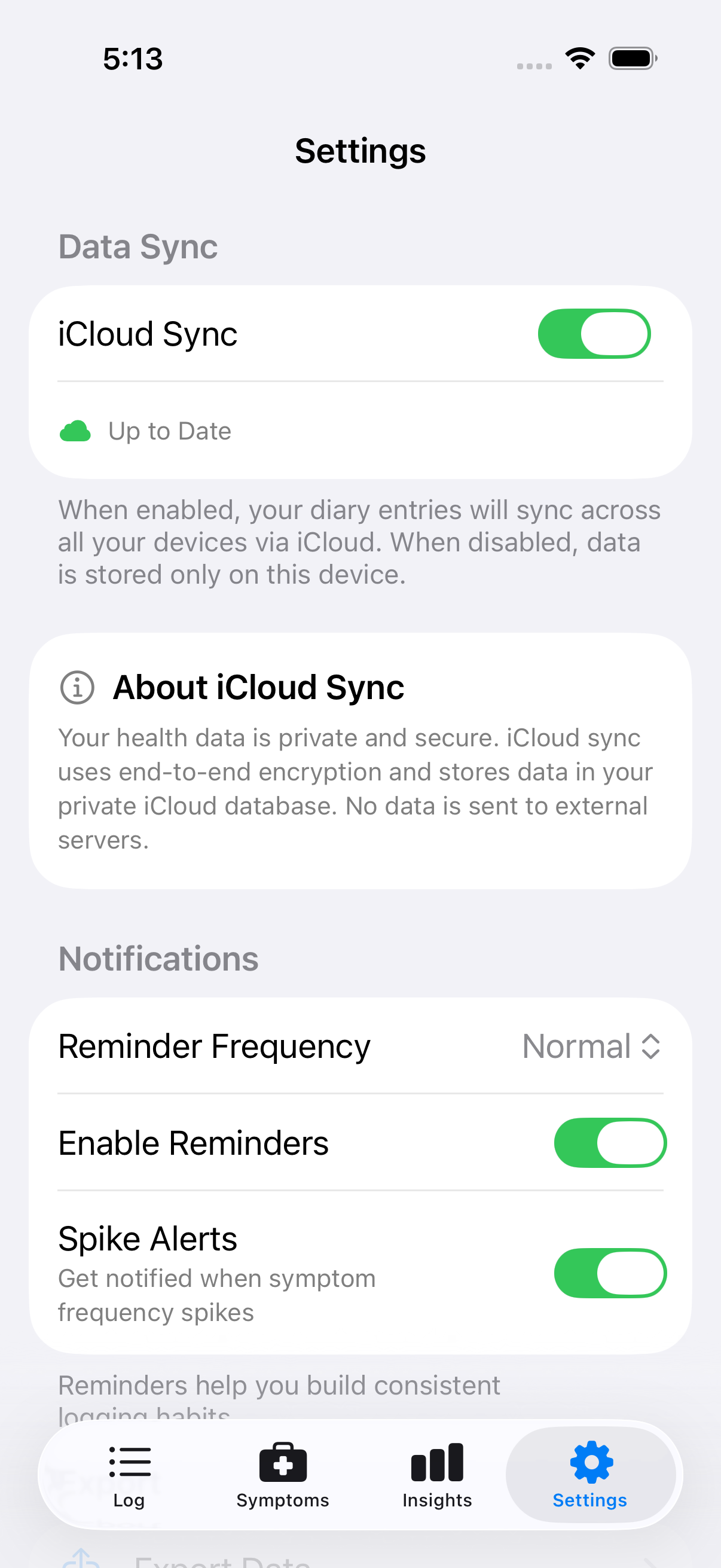
iCloud Sync enabled in Settings
First-Time Setup
If data already exists in iCloud (from another device or previous installation), you'll choose how to handle it:
| Option | What Happens |
|---|---|
| Merge | Keeps both local and cloud data |
| Replace local | Overwrites device with iCloud data |
| Replace cloud | Overwrites iCloud with device data |
Setting up a new device? "Replace local" pulls down your existing data. Unsure? "Merge" is always safe.
Sync Status
In Settings, you'll see: - Syncing... — Uploading or downloading - Up to date — Everything synced - Unavailable — iCloud not accessible (check internet/sign-in)
Multiple Devices
Once enabled, log on any device and see it everywhere. Edits and deletions sync too. There may be a brief delay (seconds to minutes) for changes to appear.
Disabling Sync
Toggle off in Settings → iCloud Sync. Your data stays on your device—it stops syncing but isn't deleted from either location.
Requirements
- Signed into iCloud with iCloud Drive enabled
- Internet connection for syncing
"iCloud unavailable"? Check that you're signed into iCloud in your device's Settings.
Offline Use
Intestigator works offline. Log normally, changes queue up locally, and sync happens automatically when you reconnect.
Next: Learn about Exporting Your Data.