Exporting Your Data
You can export your logged data as a report—handy for sharing with your doctor, keeping a backup, or reviewing outside the app.
Export Formats
| Format | Best For |
|---|---|
| Sharing with your doctor (formatted, easy to read) | |
| CSV | Opening in a spreadsheet (Excel, Google Sheets, Numbers) |
How to Export
- Go to Settings tab
- Tap Export Data
- Select your date range
- Choose PDF or CSV
- Tap Export
- Share via email, save to Files, AirDrop, etc.
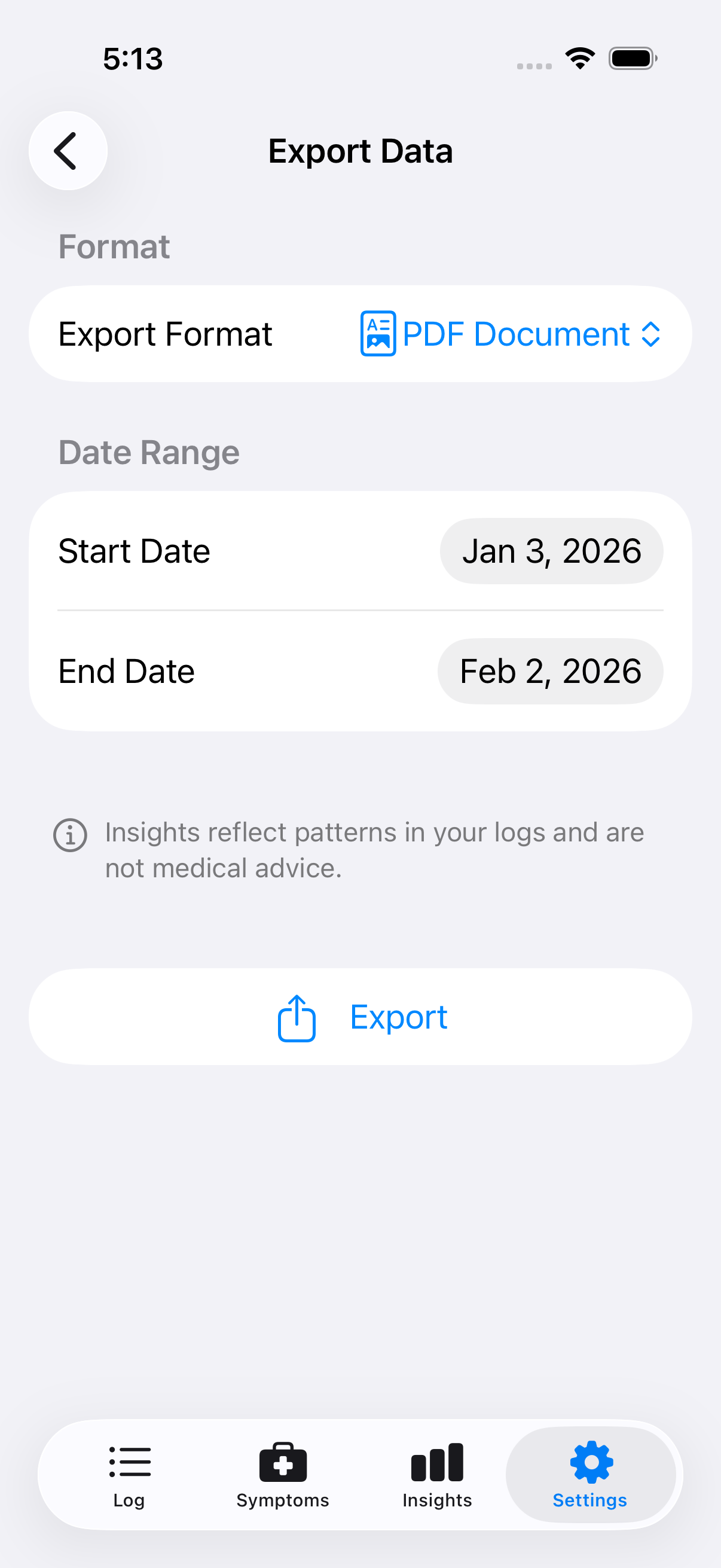
The export screen lets you choose format and date range
What's Included
Your export contains: - All meal, drink, supplement, and medication entries - All symptom entries with types, severity, and notes - Timestamps for everything - Tags you confirmed for each entry - Ingredients you manually added
Date Range
You can export any time period by setting the start and end dates. Use the date pickers to define exactly the window you need.
For doctor visits, around 30 days usually provides enough context without being overwhelming.
Sharing with Your Doctor
Exported PDFs are designed to be clear and professional: - Organized chronologically - Easy to scan for patterns - Includes a note that this is self-reported data, not a diagnosis
Bring the export to your appointment on your phone, or email it ahead of time.
Privacy Note
Your export contains personal health information. Be thoughtful about where you send it: - Email to yourself or your doctor ✓ - Save to your personal cloud storage ✓ - Post publicly ✗
What's Not Included
Exports contain your raw data, not Intestigator's analysis. Correlations, trends, and spikes are calculated insights—they're not exported because they're meant to be viewed in context within the app.
If you want to show your doctor a correlation, you can: - Show them directly in the app - Screenshot the insight - Describe it and let them review the raw data
Next: Learn about Privacy & Security.