App Settings
The Settings tab lets you customize Intestigator to fit your needs.
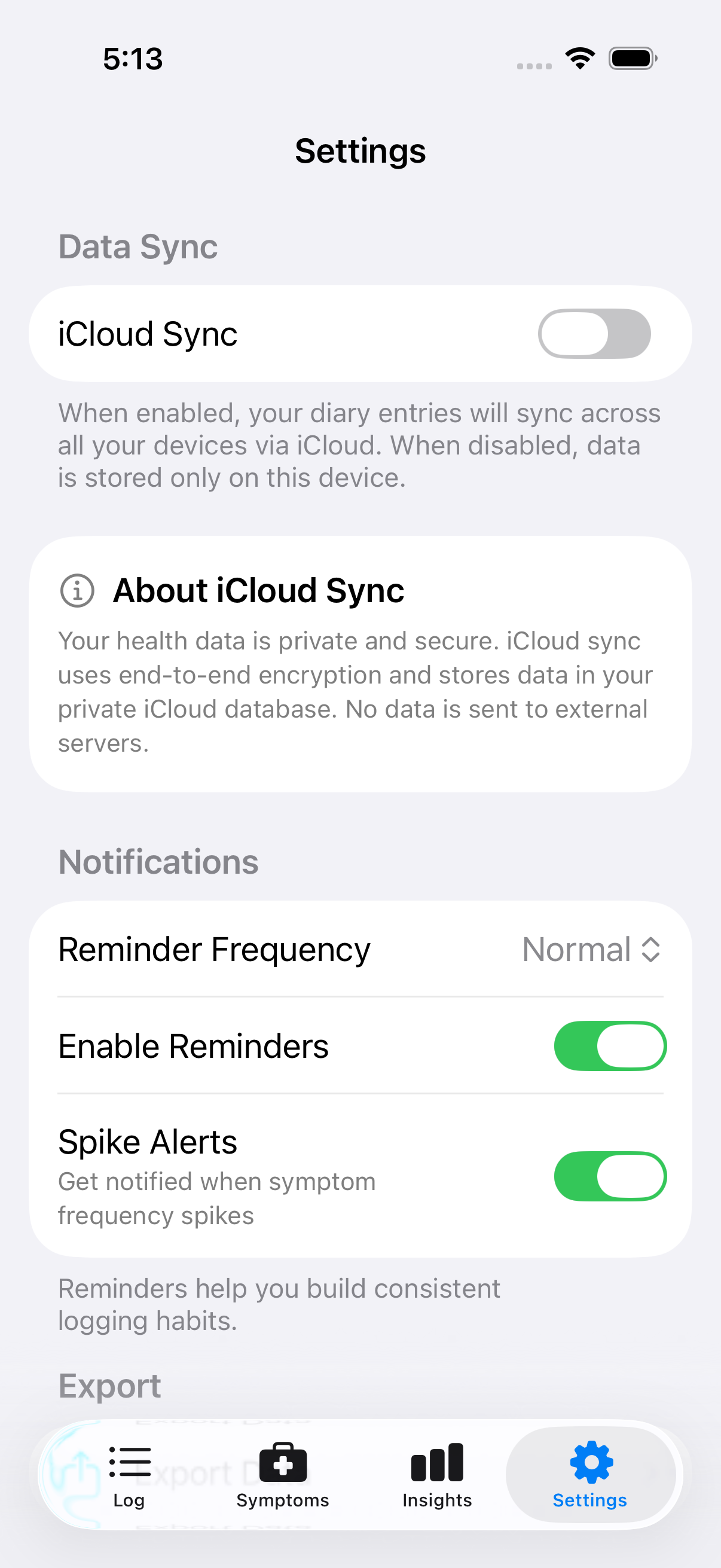
The Settings screen provides access to all app configuration
iCloud Sync
Toggle: On / Off
Sync your data across all your Apple devices through iCloud. See iCloud Sync for details.
When enabled, you'll also see the current sync status (Syncing, Up to date, or Unavailable).
Sync Strategy Selection
When you turn on iCloud Sync, it checks for existing cloud data. If there's none, sync simply starts—your local data uploads to iCloud and you're all set.
If data already exists in the cloud (from another device or a previous installation), you'll choose how to handle it:
| Strategy | What It Does | When to Use |
|---|---|---|
| Merge (recommended) | Combines your local data with cloud data, keeping entries from both | Best for most situations—preserves all your history |
| Replace Local | Discards local data and uses cloud data instead | When you want to restore from a backup or start fresh on this device |
| Replace Cloud | Discards cloud data and uploads your local data | When your local data is more current and you want other devices to match this one |
Choose carefully—Replace options permanently remove data. If you're unsure, Merge is always the safest choice.
Notifications
Toggle: On / Off
Enable or disable reminder notifications. When enabled, you can also adjust:
Frequency: | Setting | What It Means | |---------|---------------| | Fewer | Occasional nudges, less interruption | | Normal | Balanced reminders throughout the day | | More | Frequent reminders to help build the habit |
Reminders might include: - Evening prompts to log today's meals - Gentle nudges if you haven't logged in a few days - Celebration messages when you hit milestones
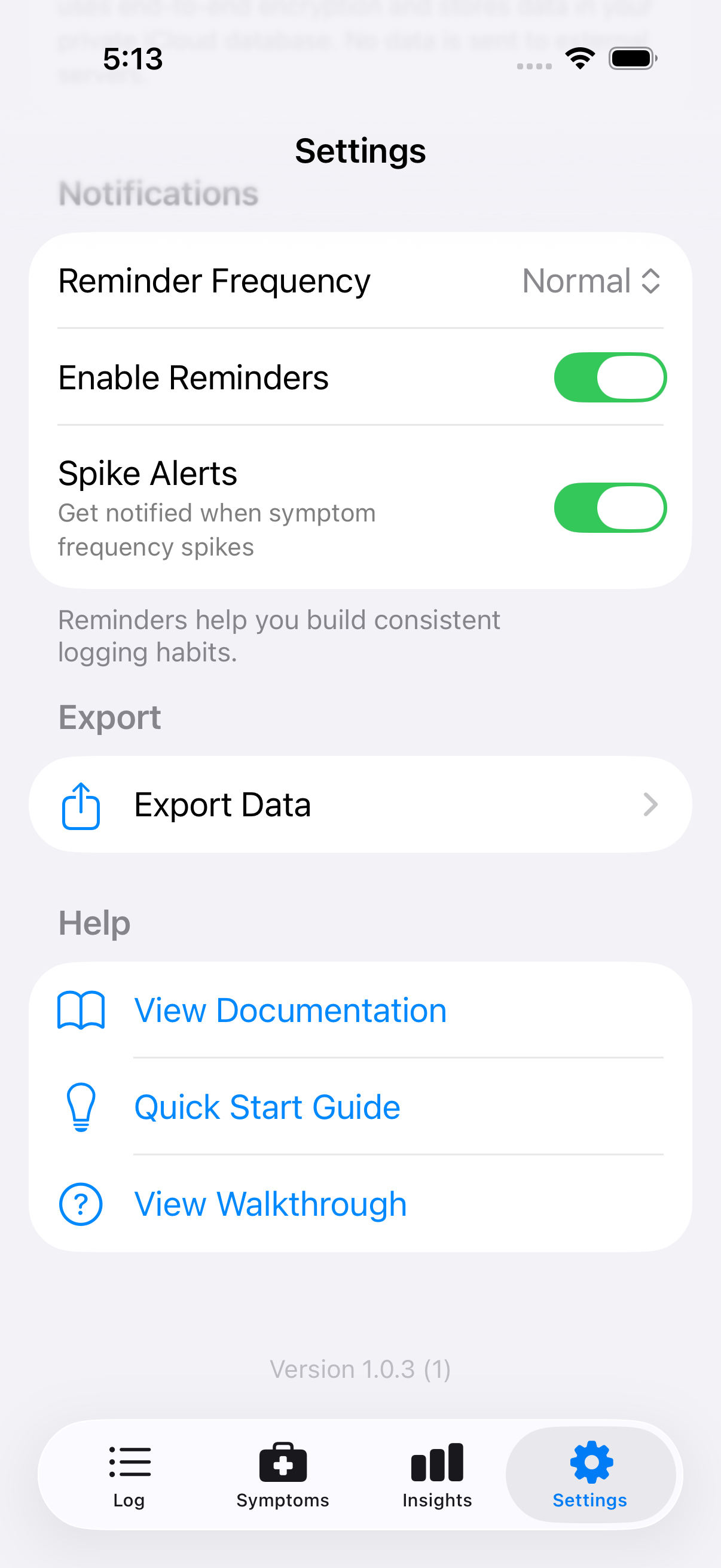
Configure reminder notifications to stay consistent
Notification Permissions
If notifications aren't working, check that Intestigator has permission in your device's Settings app: 1. Open Settings (iOS) 2. Scroll to Intestigator 3. Tap Notifications 4. Ensure Allow Notifications is on
Review Onboarding
Tap to see the welcome screens again. Useful if you want to revisit the tips or refresh your memory on how the app works.
Privacy Information
Tap to read about how your data is handled. See Privacy & Security for the full details.
Export Data
Tap to export your diary data as a PDF or CSV file. See Exporting Your Data for format options and tips.
Next: Learn Tips for Best Results.